To use a smart plug with multiple devices, you can either employ a physical method by connecting a power strip to a single smart plug, or use a virtual method by grouping multiple smart plugs within a smart home app like Alexa, Google Home, or Apple HomeKit. The physical method offers an all-or-nothing control for devices plugged into the strip, while virtual grouping provides granular control over individual smart plugs, allowing for more flexible automation and energy management.
Picture this: with a single tap on your phone or a simple voice command, your entire entertainment center hums to life. Or, as you leave the house, one word turns off every lamp, charger, and fan in your office nook. This isn’t science fiction; it’s the power of smart automation, and it’s easier to achieve than you might think. This guide breaks down the methods, from the brilliantly simple to the impressively advanced, so you can stop juggling and start orchestrating.
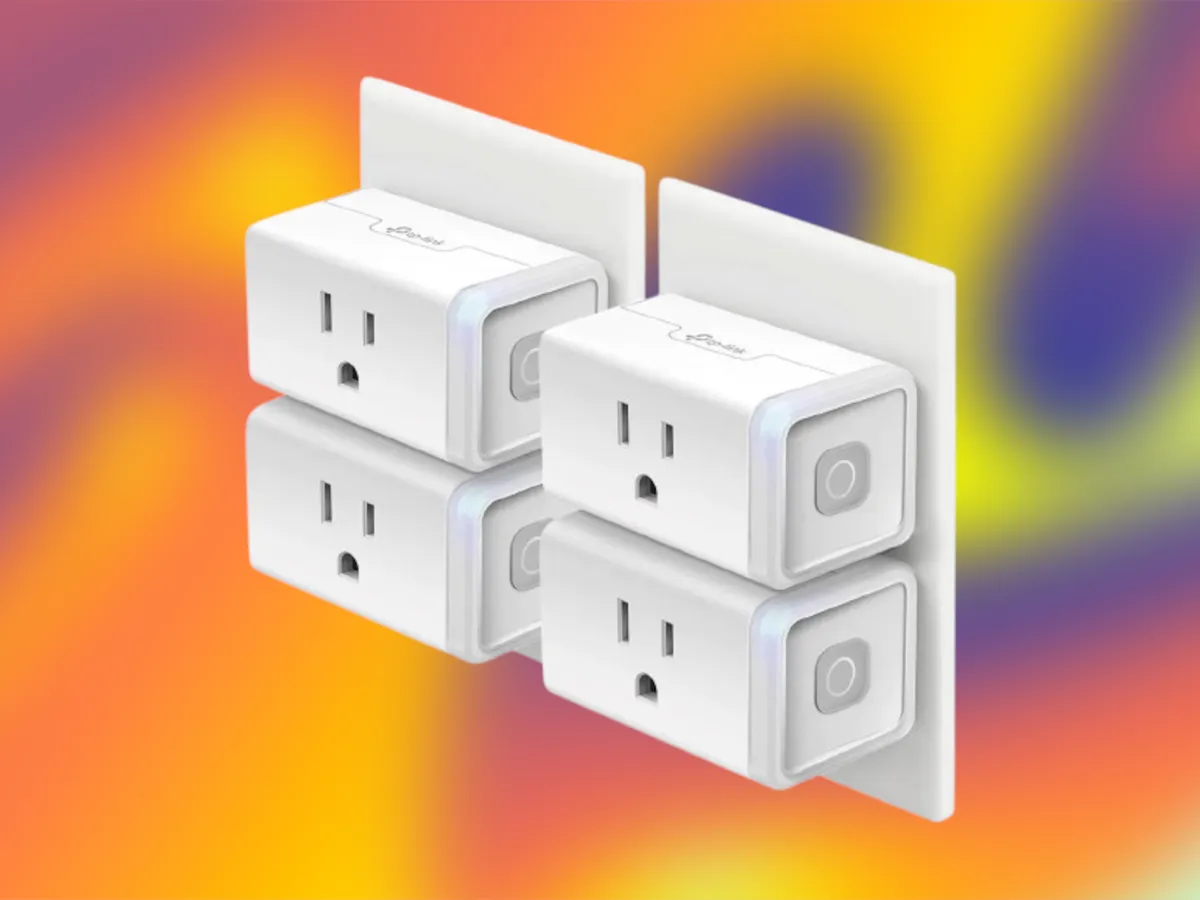
The Two Paths to Multi-Device Control
When you want to control several gadgets with one smart plug, you’re essentially looking at two distinct strategies: a physical solution and a virtual one.
- The Physical Method: Using a standard power strip connected to a single smart plug. It’s a brute-force, yet highly effective, approach.
- The Virtual Method: Using multiple smart plugs and grouping them within a smart home app (like Alexa, Google Home, or Apple HomeKit). This offers more granular control and is the foundation of true home automation.
Let’s unpack both, so you can decide which one—or which combination—is right for you.
Method 1: The Power Strip Trick (Simple & Effective)
This is the most straightforward way to get started. It’s a “one-to-many” physical connection that puts your trusty, non-smart power strip on a leash held by your smart plug.
How Does This Setup Work?
It’s beautifully simple. You plug a regular multi-outlet power strip or extension cord into your smart plug. Then, you plug all the devices you want to control together—like your TV, soundbar, and gaming console—into the power strip. The smart plug now acts as a master switch for everything connected to that strip.
When is the Power Strip Method Ideal?
This method is perfect for clusters of devices that you always use together. Think of it as creating an “activity zone.”
- Your Entertainment Center: Turn your TV, speakers, and streaming device on or off all at once.
- Holiday Decorations: Control all your Christmas lights and animated figures with a single command. No more crawling behind the tree!
- Aquarium or Terrarium Setups: Manage the lights, filters, and heaters on a unified schedule.
- Your Bedside Nook: Turn off your lamp, white noise machine, and charger with a “Goodnight” command.
Expert Take: The key limitation here is the “all-or-nothing” approach. You can’t use this method to turn off the TV while leaving the streaming device on. It’s a blunt instrument, but for the right job, it’s incredibly effective.
Method 2: Virtual Grouping (The Truly Smart Approach)
If you’re looking for more finesse, virtual grouping is your answer. This method involves using multiple smart plugs (one for each device) but controlling them as a single entity through your smart home app. This is the secret behind how to use a smart plug with multiple devices in a flexible, automated way.
How Does Smart Device Grouping Work?
|
Our Picks for the Best Smart Plug in 2026
As an Amazon Associate, we earn from qualifying purchases.
|
||
| Num | Product | Action |
|---|---|---|
| 1 | Amazon Basics Smart Plug, Works with Alexa Only, 2.4 GHz Wi-Fi, No Hub Required, 4-Pack, White |

|
| 2 | Kasa Smart Plug Mini 15A, Apple HomeKit Supported, Smart Outlet Works with Siri, Alexa & Google Home, UL Certified, App Control, Scheduling, Timer, 2.4G WiFi Only, 4 Count (Pack of 1) (EP25P4), White |
|
| 3 | Govee Smart Plug, WiFi Plugs Work with Alexa & Google Assistant, Smart Outlet with Timer & Group Controller, WiFi Outlet for Home, No Hub Required, ETL & FCC Certified, 2.4G WiFi Only, 4 Pack |
|
| 4 | Amazon Basics Smart Plug, Works with Alexa Only, 2.4 GHz Wi-Fi, No Hub Required, 2 Pack, White |
|
| 5 | Kasa Smart Plug HS103P4, Smart Home Wi-Fi Outlet Works with Alexa, Echo, Google Home & IFTTT, No Hub Required, Remote Control, 15 Amp, UL Certified, 4-Pack, White |
|
| 6 | Kasa Smart Plug Ultra Mini 15A, Smart Home Wi-Fi Outlet Works with Alexa, Google Home & IFTTT, No Hub Required, UL Certified, 2.4G WiFi Only, 2 Count (Pack of 1)(EP10P2) , White |
|
| 7 | Kasa Smart Plug Mini 15A, Smart Home Wi-Fi Outlet Works with Alexa, Google Home & IFTTT, No Hub Required, UL Certified, 2.4G WiFi Only, 4-Pack(EP10P4) , White |
|
| 8 | Govee Smart Plug, WiFi Plugs Work with Alexa & Google Assistant, Smart Outlet with Timer & Group Controller, WiFi Outlet for Home, No Hub Required, ETL & FCC Certified, 2.4G WiFi Only, 2 Pack |
|
| 9 | TP-Link Tapo Matter Supported Smart Plug Mini, Compact Design, 15A/1800W Max, Super Easy Setup, Works with Apple Home, Alexa & Google Home, UL Certified, 2.4G Wi-Fi Only, White, Tapo P125M(3-Pack) |
|
| 10 | Kasa Smart Plug HS103P2, Smart Home Wi-Fi Outlet Works with Alexa, Echo, Google Home & IFTTT, No Hub Required, Remote Control,15 Amp,UL Certified, (Pack of 2) White |
|
Most smart home ecosystems allow you to create “Groups,” “Rooms,” or “Scenes.” This is a software-level command that tells multiple, independent smart devices to act in unison. For example, you could create a “Living Room Lights” group that contains three separate smart plugs, each connected to a different lamp. When you say, “Alexa, turn on Living Room Lights,” all three lamps switch on simultaneously.
How to Group Devices in Your Favorite Ecosystem
The process is slightly different for each platform, but the core concept is the same.
### For Amazon Alexa Users: Creating a Group
- Open the Alexa app and tap on the “Devices” tab at the bottom.
- Tap the “+” icon in the top right corner.
- Select “Add Group.”
- Choose a common group name like “Bedroom Lights” or “Office Gadgets,” or create a custom name.
- Select the individual smart plugs (and other smart devices) you want to include in this group.
- Tap “Save.” Now you can say, “Alexa, turn off Office Gadgets,” and everything in that group will power down.
### For Google Home Users: Assigning to a Room
Google Home is more centered around the concept of “Rooms.”
- Open the Google Home app.
- Select the smart plug you want to assign to a room.
- Tap the “Settings” cog icon in the top right.
- Tap “Room,” and then choose an existing room or create a new one.
- Repeat this for all the devices you want to control together.
- Once assigned, you can say, “Hey Google, turn on the living room,” and every smart device assigned to that room will turn on. You can also create more specific Routines for custom commands.
### For Apple HomeKit Users: Building a Scene
HomeKit excels with “Scenes,” which are perfect for setting a mood.
- Open the Apple Home app.
- Tap the “+” icon and select “Add Scene.”
- Choose a suggested scene or tap “Custom” to create your own. Give it a name, like “Movie Night.”
- Tap “Add Accessories” and select the smart plugs and other devices you want to control.
- Tap “Done.” Now you can adjust what each device does in that scene (e.g., Lamp A turns on and dims to 30%, Lamp B turns off).
- You can now activate the entire scene by telling Siri, “Hey Siri, set Movie Night.”
The Ultimate Solution: The Smart Power Strip
What if you could combine the convenience of a power strip with the individual control of virtual grouping? You can. It’s called a smart power strip.
A smart power strip looks like a regular one, but each individual outlet (and often the USB ports, too) can be controlled independently within your smart home app. It’s the best of both worlds.
| Feature | Smart Plug + Regular Strip | Smart Power Strip |
|---|---|---|
| Control | All-or-nothing (entire strip) | Individual outlet control |
| Cost | Lower initial cost | Higher initial cost |
| Space | Can be bulky | More streamlined |
| Setup | Simple plug-and-play | One setup for multiple outlets |
| Best For | Device clusters used together | Mixed-use areas (desk, TV) |
A smart power strip is the definitive answer for anyone serious about managing a hub of electronics. You can create a routine where your monitor and desk lamp turn on, but your printer stays off until you specifically ask for it. This granular control is a major upgrade for energy savings and convenience.
As smart home expert Dr. Evelyn Reed notes, “We’re moving past simple on/off commands. The future is about orchestration—creating environments that adapt to our needs. Smart power strips and device groups are the building blocks of that personalized future, allowing users to define exactly how their space should function at any given moment.”
A Quick Word on Electrical Safety
It’s crucial to that smart plugs are gateways for electricity. Always be mindful of the maximum power load.
- Check the Rating: Your smart plug has a maximum amperage rating (e.g., 10A, 15A).
- Don’t Overload: The total power draw of all devices connected (whether through a power strip or individually) should never exceed the smart plug’s rating.
- Avoid High-Power Appliances: Never plug devices with heating elements or large motors, like space heaters, hair dryers, refrigerators, or treadmills, into a smart plug or a power strip connected to one. This poses a significant fire risk.
Frequently Asked Questions (FAQ)
Q1: Can I control multiple devices independently with just one smart plug?
The short answer is no. A standard smart plug has only one outlet and acts as a single switch. To control devices independently, you either need multiple smart plugs that are grouped virtually in an app, or a smart power strip with individually controllable outlets.
Q2: What is the difference between a “group” and a “routine” in smart home apps?
A “group” is typically a collection of similar devices (e.g., “Downstairs Lights”) that you control with a simple on/off command. A “routine” (or “automation”) is a more complex sequence of actions, often triggered by a custom phrase, time of day, or sensor. For example, a “Good Morning” routine could turn on your smart plugs, read the weather, and start your morning playlist.
Q3: Do I need a smart home hub to control multiple devices?
Not necessarily. Most Wi-Fi-based smart plugs connect directly to your router and can be grouped within the Alexa, Google Home, or manufacturer’s app without a separate hub. Hubs are more common for devices using other protocols like Zigbee or Z-Wave, which can create a more robust and responsive local network.
Q4: How many devices can I safely plug into a power strip connected to a smart plug?
This is about total power load, not the number of devices. Add up the wattage of every device you plan to connect. This total must be well below the maximum wattage rating of both the smart plug and the power strip. It’s always better to be safe and leave plenty of headroom.
Q5: Will my smart plug groups still work if my internet goes down?
It depends. If your commands and schedules are stored in the cloud (which is true for most Wi-Fi plugs), they will not work without an internet connection. Some systems with local hubs (like Hubitat or some HomeKit setups) can continue to run local automations without the internet.
Your Home, Your Rules
You are now equipped with the knowledge of how to use a smart plug with multiple devices. Whether you start with the simple and effective power strip method or jump right into creating intricate scenes with virtual groups, you’re taking a major step toward a more convenient, responsive, and efficient home.
The beauty of a smart home isn’t just about flashy tech; it’s about reclaiming your time and energy. It’s about designing a living space that works for you. So go ahead, start grouping those lamps, taming that entertainment center, and building routines that make your day just a little bit smoother. Your smart home symphony is waiting for its conductor.
Frequently Asked Questions
Can a single smart plug control multiple devices independently?
No, a standard smart plug has only one outlet and functions as a single switch. To control devices independently, you need either multiple smart plugs grouped virtually in an app or a smart power strip with individually controllable outlets.
What is the difference between a smart home 'group' and a 'routine'?
A 'group' is a collection of similar devices, such as 'Downstairs Lights,' controlled by a simple on/off command. A 'routine' is a more complex sequence of actions, often triggered by a custom phrase, time, or sensor, like a 'Good Morning' routine that activates multiple devices and provides information.
Is a smart home hub necessary to control multiple smart devices?
Not necessarily. Most Wi-Fi-based smart plugs connect directly to your router and can be grouped within their respective apps (Alexa, Google Home, or manufacturer's app) without a separate hub. Hubs are more common for devices using protocols like Zigbee or Z-Wave for a more robust local network.
How many devices can be safely connected to a smart plug via a power strip?
The number of devices is less important than their total power load. You must calculate the combined wattage of all connected devices, ensuring it remains well below the maximum wattage rating of both the smart plug and the power strip to prevent overloading and fire risks.
Will smart plug groups function if my internet connection is lost?
It depends on the system. Most Wi-Fi-based smart plugs store commands and schedules in the cloud, meaning they will not work without an internet connection. However, some systems with local hubs, such as Hubitat or certain HomeKit setups, can continue to run local automations offline.
How to Use a Smart Plug with a Power Strip
This method allows you to control multiple devices simultaneously by connecting them to a power strip, which is then plugged into a single smart plug.
Select a high-quality, surge-protected power strip. Verify its maximum power rating (in watts or amps) to ensure it can safely handle the combined electrical load of all devices you intend to connect.
Plug the chosen power strip directly into your smart plug. Ensure the smart plug is already configured and connected to your smart home network.
Connect all the devices you wish to control simultaneously into the outlets of the power strip. Examples include an entertainment center (TV, soundbar) or an office setup (desk lamp, monitor, phone charger).
Use your smart plug's dedicated app, or your integrated smart home app (like Alexa or Google Home), to turn the smart plug on or off. This action will now control the power to the entire power strip and all connected devices.
Smart home that does not lock you in
Free PDF — protocol compatibility matrix for 30 hubs and devices.
This really simplified how I think about smart home automation. I used to think I needed a smart plug for every single thing, but connecting a power strip to one smart plug for my entertainment center was brilliant. Now my whole setup turns on and off with a single tap in the Alexa app. So easy!
I’ve been wanting to automate my home office for ages, and the idea of using a power strip with a smart plug was a game-changer. Now, with one voice command, my monitor, lamp, and phone charger all turn off when I leave. It’s so much more convenient and I’m definitely saving energy.
I tried the physical method with a power strip for my kitchen appliances, but I found the ‘all-or-nothing’ control a bit limiting. Sometimes I just want to turn off the coffee maker without also turning off the toaster oven. It works, but I think I’ll switch to individual smart plugs for more flexibility.
The virtual grouping method with Google Home has been fantastic for my living room. I have separate smart plugs for my TV, soundbar, and a couple of lamps, and being able to control them individually or as a group is super flexible. Setting it up took a little bit of fiddling, but it’s worth it for the granular control.