When a smart plug stops working, the most common causes are power loss, Wi-Fi connectivity issues, or problems with the control app or smart assistant integration. Fixing these issues typically involves checking power, restarting the plug, verifying Wi-Fi settings (especially 2.4GHz compatibility), updating the app and firmware, or re-linking with your smart assistant. Over 90% of common smart plug problems can be resolved by systematically following these troubleshooting steps.
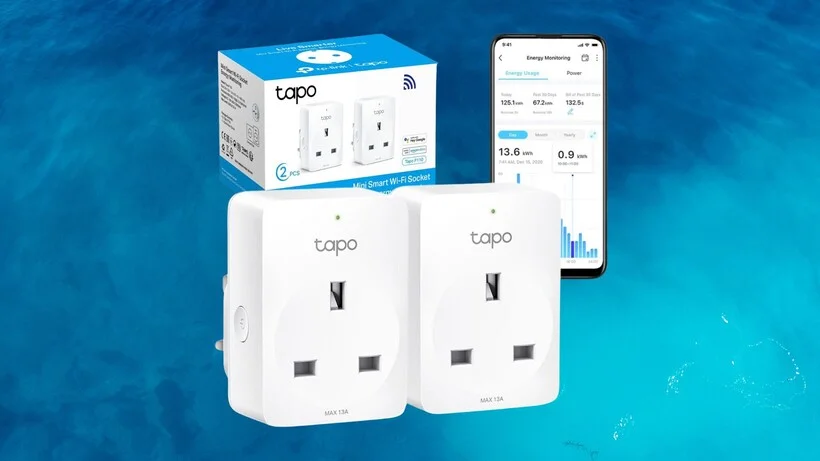
First Things First: Simple Checks
Before delving into complex network settings, start with these basic checks. The simplest solution often resolves the problem. For browse all smart home articles on this site.
- Check the Power: Ensure the smart plug is firmly seated in the wall outlet and the appliance is securely plugged into the smart plug. Test the smart plug with a different, simple device, like a phone charger, to confirm it receives power.
- The Manual Button: Press the physical on/off button on the smart plug. If the connected device turns on and off manually, the plug itself has power, indicating the issue is likely with its smart features (connection or software).
- The Classic “Turn It Off and On Again”: Unplug the smart plug from the wall, wait 30 seconds, and plug it back in. This power cycle can resolve temporary glitches by clearing the plug’s memory.
How to Fix Smart Plug Not Working: A Deeper Dive
If the quick checks didn’t work, most smart plug issues stem from Wi-Fi, the app, or its connection to your smart assistant.
Step 1: Untangle Your Wi-Fi Woes
Your smart plug’s internet connection is vital. A shaky or misconfigured connection will prevent it from working.
Are You on the Right Network?
Most smart plugs require a 2.4GHz Wi-Fi network. Many modern routers broadcast both 2.4GHz and 5GHz networks. While 5GHz is faster, 2.4GHz offers a longer range and better wall penetration, which is ideal for small IoT devices.
- How to Fix: During setup or reconnection, ensure your phone is connected to the 2.4GHz network band. Your router settings allow you to view or separate these networks if they share the same name.
How Far is Your Router?
If your smart plug is in a Wi-Fi “dead zone,” a weak signal can cause intermittent disconnections or complete offline status.
- How to Fix: Temporarily move the smart plug closer to your router. If it starts working, consider a Wi-Fi extender or a mesh network system for better home coverage.
Step 2: Check the App and Firmware
|
Our Picks for the Best Smart Plug in 2026
As an Amazon Associate, we earn from qualifying purchases.
|
||
| Num | Product | Action |
|---|---|---|
| 1 | Kasa Smart Plug Mini 15A, Apple HomeKit Supported, Smart Outlet Works with Siri, Alexa & Google Home, UL Certified, App Control, Scheduling, Timer, 2.4G WiFi Only, 4 Count (Pack of 1) (EP25P4), White |

|
| 2 | Amazon Basics Smart Plug, Works with Alexa Only, 2.4 GHz Wi-Fi, No Hub Required, 2 Pack, White |
|
| 3 | Govee Smart Plug, WiFi Plugs Work with Alexa & Google Assistant, Smart Outlet with Timer & Group Controller, WiFi Outlet for Home, No Hub Required, ETL & FCC Certified, 2.4G WiFi Only, 4 Pack |
|
| 4 | TP-Link Tapo Matter Supported Smart Plug Mini, Compact Design, 15A/1800W Max, Super Easy Setup, Works with Apple Home, Alexa & Google Home, UL Certified, 2.4G Wi-Fi Only, White, Tapo P125M(3-Pack) |
|
| 5 | Kasa Smart Plug Mini 15A, Smart Home Wi-Fi Outlet Works with Alexa, Google Home & IFTTT, No Hub Required, UL Certified, 2.4G WiFi Only, 4-Pack(EP10P4) , White |
|
| 6 | Kasa Smart Plug Ultra Mini 15A, Smart Home Wi-Fi Outlet Works with Alexa, Google Home & IFTTT, No Hub Required, UL Certified, 2.4G WiFi Only, 2 Count (Pack of 1)(EP10P2) , White |
|
| 7 | Govee Smart Plug, WiFi Plugs Work with Alexa & Google Assistant, Smart Outlet with Timer & Group Controller, WiFi Outlet for Home, No Hub Required, ETL & FCC Certified, 2.4G WiFi Only, 2 Pack |
|
| 8 | Kasa Smart Plug HS103P4, Smart Home Wi-Fi Outlet Works with Alexa, Echo, Google Home & IFTTT, No Hub Required, Remote Control, 15 Amp, UL Certified, 4-Pack, White |
|
| 9 | Kasa Smart Plug HS103P2, Smart Home Wi-Fi Outlet Works with Alexa, Echo, Google Home & IFTTT, No Hub Required, Remote Control,15 Amp,UL Certified, (Pack of 2) White |
|
| 10 | Amazon Basics Smart Plug, Works with Alexa Only, 2.4 GHz Wi-Fi, No Hub Required, 4-Pack, White |
|
The smart plug’s companion app is its command center. An outdated or corrupted app can lead to communication failures.
- Update the App: Check your phone’s app store (Google Play or Apple App Store) for updates to your smart plug’s app (e.g., Kasa, Tuya, Gosund). Developers frequently release updates to fix bugs and improve stability.
- Update the Firmware: Within the app, navigate to the device settings for your plug. Look for “Firmware Update” or “Check for Updates.” Outdated firmware can cause compatibility and performance issues.
- Clear the Cache: If the app behaves oddly, clear its cache via your phone’s settings. This won’t delete your settings but can resolve corrupted data.
Step 3: Re-Link Your Smart Assistant
Sometimes, the smart plug works fine within its own app but doesn’t respond to Alexa, Google Assistant, or Siri. This indicates a broken link between the services.
“The true power of a smart home lies in the seamless integration of its parts. When a device like a smart plug stops responding to a voice assistant, it’s often an authentication or ‘handshake’ issue between two different software ecosystems. Re-linking the service is like re-introducing two friends who have forgotten each other’s names.” – Dr. Alistair Finch, IoT Integration Specialist.
- How to Fix:
- Open your Amazon Alexa, Google Home, or Apple Home app.
- Go to the “Skills & Games” (Alexa) or “Works with Google” (Google) section.
- Find and disable the skill for your smart plug brand.
- Re-enable the skill and sign back into your smart plug account to re-link it.
- Ask your assistant to “discover new devices” to bring the plug back online.
Step 4: The Last Resort – The Factory Reset
If all other troubleshooting fails, a factory reset will wipe the plug’s settings and return it to its original state, requiring a complete re-setup.
- How to Do It: The exact process varies by brand, but typically involves pressing and holding the physical button on the plug for 10-15 seconds until the indicator light flashes rapidly. Consult your user manual for precise instructions. After resetting, open the app and follow the on-screen instructions to add it as a new device.
Why Do Smart Plugs Go Offline?
Understanding common causes can help prevent future problems. A smart plug is a mini-computer with a relay, a Wi-Fi chip, and a processor.
- Power Outages: Sudden power cuts or brownouts can corrupt the plug’s memory.
- Router Changes: A new router or changed Wi-Fi password requires reconnecting all smart devices, including plugs.
- IP Address Conflicts: Rarely, your router might assign the same IP address to two devices, causing a conflict. A simple router reboot usually resolves this.
- Server-Side Issues: If the smart plug manufacturer’s servers are down for maintenance, your plug may become temporarily unresponsive.
Choosing a Reliable Smart Plug
Consistent issues might indicate it’s time for an upgrade. A reliable smart plug is crucial for an efficient smart home, helping save energy and automate routines.Look for plugs with positive reviews, strong app support, and compatibility with the Matter protocol, an industry standard designed for seamless interoperability between different smart device brands.
Frequently Asked Questions (FAQ)
Fix a Smart Plug That Is Not Working
This guide provides a step-by-step process to troubleshoot and resolve common issues with smart plugs that are not responding or going offline.
First, verify the smart plug has power by ensuring it's firmly plugged into the wall and the appliance is connected. Test the physical on/off button and perform a power cycle by unplugging it for 30 seconds before plugging it back in.
Ensure your smart plug is connected to a 2.4GHz Wi-Fi network, as most plugs are not compatible with 5GHz. Check the signal strength by moving the plug closer to your router; a weak signal can cause disconnections.
Check your phone's app store for updates to the smart plug's companion app. Within the app, navigate to device settings and look for firmware updates. Clearing the app's cache can also resolve performance issues.
If the plug works in its app but not with Alexa or Google Assistant, the link may be broken. Disable and then re-enable the smart plug's skill or service in your smart assistant's app, then ask the assistant to discover new devices.
As a last resort, perform a factory reset on the smart plug. This typically involves holding the physical button for 10-15 seconds until the indicator light flashes. Consult your user manual for specific instructions, then set up the plug as a new device in its app.
Smart home that does not lock you in
Free PDF — protocol compatibility matrix for 30 hubs and devices.
This was super helpful! My smart plug for my grow lights suddenly stopped working, and I was worried it was a hardware failure. Turns out, the firmware needed an update, which I hadn’t even thought to check. After updating, it’s been perfectly stable. Definitely recommend going through these steps before giving up on a plug.
My outdoor smart plug for the patio lights went offline after a power flicker. I was about to buy a new one, but decided to try the troubleshooting steps first. Just re-linking it with my smart assistant, Alexa in my case, did the trick. It was a lot simpler than I thought it would be, and saved me some money.
I was so frustrated when my smart plug for the coffee maker just stopped responding. I tried restarting it a few times, but nothing. Following the advice to check the Wi-Fi settings and making sure it was on the 2.4GHz band totally fixed it! I didn’t even realize that was a thing. Now my morning coffee routine is back on track.
I had an issue with my smart plug controlling my fan. I went through all the steps, checking power, restarting, even updating the app. It eventually started working again, but it took a good 20 minutes of fiddling. I wish the app was more intuitive about diagnosing the problem, instead of me having to guess.