Connecting a smart plug to WiFi typically involves downloading the manufacturer’s app, plugging in the device, and following the in-app instructions to link it to your home’s 2.4GHz WiFi network using your smartphone or tablet. This process usually takes 5-10 minutes and enables remote control and automation of connected appliances.
First Things First: Your Pre-Flight Checklist
Before you even plug the device in, let’s get our ducks in a row. A little preparation can save you a world of headache later. Trust me, I’ve learned this the hard way after fumbling for a password with a blinking device timing out on me. For complete smart home library on this site.
Here’s what you’ll need:
- Your Smartphone or Tablet: This is your command center for the setup process.
- Your Home WiFi Network Name (SSID) and Password: Have this ready. Double-check for any tricky capital letters or symbols.
- The Smart Plug’s Companion App: Head to the Apple App Store or Google Play Store and download the specific app mentioned in your smart plug’s manual (e.g., Smart Life, Kasa Smart, TP-Link Tapo, etc.).
- A Stable WiFi Connection: Make sure you’re setting up the plug in an area with a decent WiFi signal.
Pro Tip: Most smart plugs operate on a 2.4GHz WiFi band. If your router broadcasts both 2.4GHz and 5GHz networks, make sure your phone is connected to the 2.4GHz network before you begin. The 5GHz band is faster, but 2.4GHz has a longer range and better penetration through walls, which is ideal for many IoT devices.
The Main Event: How to Connect Smart Plug to WiFi Step-by-Step
Alright, checklist completeLet’s dive into the main setup process. While the exact app interface might vary slightly between brands, the core principles are almost always the same.
- Create an Account: Open the app you downloaded. You’ll likely need to create a new account using your email address and a password. Go through the verification process if required. This account will manage all your smart devices from that brand.
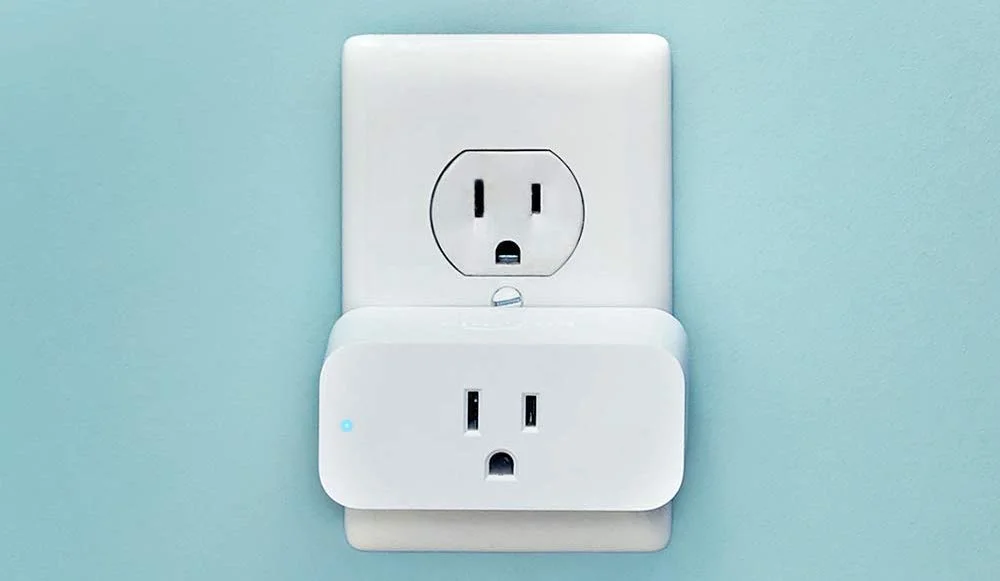
- Plug It In: Find a wall outlet near your router for the initial setup. Plug in your new smart plug. A small LED light should start blinking, usually blue or green. This blinking light is the plug’s way of saying, “I’m ready to connect!” If it’s not blinking, check the manual for how to reset it—this usually involves holding down the power button for a few seconds.
- Add a New Device: In the app, look for an “Add Device,” “Add New,” or a plus sign (+) icon. Tap it. The app will present a list of device types. Select “Socket,” “Plug,” or “Outlet.”
- Enter Your WiFi Credentials: The app will now ask you to confirm the WiFi network your phone is currently connected to (this should be your 2.4GHz network). Carefully type in your WiFi password. This is the most common point of failure, so triple-check for typos!
- Let the Magic Happen: The app will now begin the pairing process. It sends the WiFi credentials from your phone to the smart plug. During this time, the blinking light on the plug might change speed or color. Just be patient; it can take a minute or two.
- Success and Naming: Once connected, the app will give you a success message! The blinking light on the plug will turn solid. The final step is to give your plug a name. Be descriptive! Instead of “Smart Plug 1,” use “Living Room Lamp” or “Bedroom Fan.” This will be incredibly useful later, especially when you start using voice commands.
And that’s it! You’ve successfully learned how to connect smart plug to WiFi. You can now turn the plug on and off from the app.
“Houston, We Have a Problem!” Common Troubleshooting Tips
What if things don’t go as smoothly as planned? Don’t panic. Most connection issues are easy to fix. Here are some of the most common hiccups and how to solve them.
What if my smart plug won’t connect?
|
Our Picks for the Best Smart Plug in 2026
As an Amazon Associate, we earn from qualifying purchases.
|
||
| Num | Product | Action |
|---|---|---|
| 1 | Kasa Smart Plug Mini 15A, Apple HomeKit Supported, Smart Outlet Works with Siri, Alexa & Google Home, UL Certified, App Control, Scheduling, Timer, 2.4G WiFi Only, 4 Count (Pack of 1) (EP25P4), White |

|
| 2 | Kasa Smart Plug Mini 15A, Smart Home Wi-Fi Outlet Works with Alexa, Google Home & IFTTT, No Hub Required, UL Certified, 2.4G WiFi Only, 4-Pack(EP10P4) , White |
|
| 3 | Govee Smart Plug, WiFi Plugs Work with Alexa & Google Assistant, Smart Outlet with Timer & Group Controller, WiFi Outlet for Home, No Hub Required, ETL & FCC Certified, 2.4G WiFi Only, 2 Pack |
|
| 4 | Kasa Smart Plug HS103P2, Smart Home Wi-Fi Outlet Works with Alexa, Echo, Google Home & IFTTT, No Hub Required, Remote Control,15 Amp,UL Certified, (Pack of 2) White |
|
| 5 | Kasa Smart Plug HS103P4, Smart Home Wi-Fi Outlet Works with Alexa, Echo, Google Home & IFTTT, No Hub Required, Remote Control, 15 Amp, UL Certified, 4-Pack, White |
|
| 6 | Amazon Basics Smart Plug, Works with Alexa Only, 2.4 GHz Wi-Fi, No Hub Required, 4-Pack, White |
|
| 7 | Amazon Basics Smart Plug, Works with Alexa Only, 2.4 GHz Wi-Fi, No Hub Required, 2 Pack, White |
|
| 8 | Govee Smart Plug, WiFi Plugs Work with Alexa & Google Assistant, Smart Outlet with Timer & Group Controller, WiFi Outlet for Home, No Hub Required, ETL & FCC Certified, 2.4G WiFi Only, 4 Pack |
|
| 9 | Kasa Smart Plug Ultra Mini 15A, Smart Home Wi-Fi Outlet Works with Alexa, Google Home & IFTTT, No Hub Required, UL Certified, 2.4G WiFi Only, 2 Count (Pack of 1)(EP10P2) , White |
|
| 10 | TP-Link Tapo Matter Supported Smart Plug Mini, Compact Design, 15A/1800W Max, Super Easy Setup, Works with Apple Home, Alexa & Google Home, UL Certified, 2.4G Wi-Fi Only, White, Tapo P125M(3-Pack) |
|
If the connection fails, start with the basics. Double-check that you entered the correct WiFi password. Ensure your phone is connected to the 2.4GHz network, not the 5GHz one. Finally, try moving the plug closer to your WiFi router for the initial setup.
The light on my plug isn’t blinking. What do I do?
A non-blinking light means the plug isn’t in pairing mode. Most smart plugs have a physical button. Press and hold this button for 5-10 seconds until the indicator light begins to flash rapidly. This performs a factory reset and puts it back into pairing mode.
My router uses the same name for 2.4GHz and 5GHz networks. What now?
This feature, often called “band steering,” can sometimes confuse IoT devices. The easiest solution is to temporarily log into your router’s admin settings and disable the 5GHz band. Once your smart plug is connected to the 2.4GHz network, you can re-enable the 5GHz band.
Beyond the Basics: Integrating with Your Smart Home Ecosystem
Connecting the plug to WiFi is just the beginning. The real power comes from integrating it into your wider smart home. Whether you’re Team Google, Team Alexa, or Team Apple, getting your plug to work with your voice assistant is usually straightforward.
- For Amazon Alexa: Open the Alexa app, go to “Skills & Games,” and search for the skill associated with your smart plug’s brand (e.g., “Kasa”). Enable the skill and link your accounts.
- For Google Assistant: Open the Google Home app, tap the “+” in the top left, select “Set up device,” then “Works with Google.” Find your smart plug’s brand in the list and link your accounts.
- For Apple HomeKit: For devices that are HomeKit compatible (look for the “Works with Apple HomeKit” logo on the box), the process is even simpler. You’ll typically just scan a QR code on the device using the Apple Home app.
Once linked, you can say things like, “Hey Google, turn on the coffee maker,” or “Alexa, turn off the living room lamp.” It feels like living in the future.
“The true beauty of a smart plug isn’t just remote control; it’s automation. It’s the first, most accessible step for anyone looking to build a truly intelligent home that anticipates their needs.”
— David Chen, Smart Home Technology Analyst
The Real-World Benefits: Saving Energy and Gaining Peace of Mind
Why go through all this trouble? Because a connected plug is more than a gadget; it’s a tool for a smarter, more efficient life. You can [set schedules to save energy], for instance, by ensuring a power-hungry device is only on when you need it. Ever leave the house and have that nagging feeling you left the iron on? Now you can check your phone and turn it off from anywhere in the world. That peace of mind is priceless. You can even explore [advanced smart home automations] to have your lights turn on automatically at sunset or your fan turn on when the room reaches a certain temperature.
Frequently Asked Questions
Q: Do smart plugs use a lot of electricity?
A: No. In standby mode, a smart plug consumes a very small amount of power, typically less than 1 watt. The energy savings from controlling your connected appliances will far outweigh the plug’s own consumption.
Q: Can I use a smart plug outdoors?
A: Only if it is specifically rated for outdoor use. Outdoor smart plugs are built to withstand moisture, dust, and temperature changes. Using an indoor plug outside is a safety hazard.
Q: How secure are smart plugs?
A: Reputable brands take security seriously, using encryption to protect your data. To stay safe, always use a strong, unique password for your smart home app and keep the device’s firmware updated through the app.
Q: Do I need a smart home hub to use a smart plug?
A: Not usually. Most modern smart plugs are WiFi-based and connect directly to your router without needing a separate hub like a Philips Hue Bridge or Samsung SmartThings Hub. However, some devices use other protocols like Zigbee or Z-Wave, which do require a hub.
Q: What happens if the internet goes out?
A: If your WiFi goes down, you won’t be able to control the smart plug remotely from your phone or with your voice assistant. However, you can almost always still turn it on and off manually using the physical button on the plug itself.
Your Journey to a Smarter Home Starts Now
Congratulations! You now have all the knowledge you need on how to connect smart plug to WiFi and integrate it into your daily life. It’s a simple process that unlocks a world of convenience, efficiency, and automation. This small device is often the gateway for many people into the larger, exciting ecosystem of smart home technology. So go ahead, start experimenting with schedules and routines, and enjoy the first step in building a home that truly works for you.
Frequently Asked Questions
Do smart plugs consume a lot of electricity in standby mode?
No, smart plugs are very energy efficient. In standby mode, a smart plug typically consumes less than 1 watt of power. The energy savings from controlling connected appliances will significantly outweigh the plug's minimal consumption.
Can smart plugs be safely used in outdoor environments?
Smart plugs can only be used outdoors if they are specifically rated for outdoor use. Outdoor smart plugs are designed to withstand environmental factors like moisture, dust, and temperature fluctuations, whereas indoor plugs are not and pose a safety hazard if used outside.
How secure are smart plugs against potential cyber threats?
Reputable smart plug brands prioritize security by employing encryption to protect user data and communications. To maintain security, users should always use strong, unique passwords for their smart home apps and regularly update the device's firmware through the app.
Is a separate smart home hub required to use most smart plugs?
Not usually. Most modern smart plugs are WiFi-based and connect directly to your home router without the need for a separate hub. However, some devices that use protocols like Zigbee or Z-Wave do require a compatible hub for functionality.
What happens to smart plug functionality if the internet connection is lost?
If your home's WiFi goes down, you will lose the ability to control the smart plug remotely via your smartphone app or voice assistant. However, in most cases, you can still manually turn the smart plug on and off using its physical button.
Smart home that does not lock you in
Free PDF — protocol compatibility matrix for 30 hubs and devices.
This was exactly what I needed! I appreciated the emphasis on downloading the companion app first. It made the whole process of linking the smart plug to my network much smoother than I expected. I’m already planning to get more for my lamps.
Excellent advice on the pre-flight checklist! Having my SSID and password handy definitely cut down on setup time. I got my new smart plug connected in under 10 minutes, and now I’m automating my fan to turn on when the temperature hits a certain point. So convenient!
The guide was mostly helpful, especially the tip about using the 2.4GHz network. However, I still had a bit of a struggle getting the manufacturer’s app to recognize the plug initially. It took a few tries and restarting my phone, which was a little frustrating.
I always thought connecting smart devices was super complicated, but following these steps made it a breeze. Having my WiFi password ready beforehand, as suggested, really saved me time. Now I can turn off my coffee maker from bed, which is a game-changer for my morning routine!