Ever found yourself standing in the dark, yelling, “Alexa, turn on… uh… Smart Plug Thingy 2”? Let’s be real, we’ve all been there. You’ve embraced the smart home revolution, but your device list looks like a random password generator. Learning how to rename a smart plug in an app is more than just a bit of digital housekeeping; it’s the crucial first step to transforming a collection of gadgets into a truly intuitive, voice-controlled smart home. This guide will walk you through not just the how, but the why and the what’s next, turning you from a smart plug owner into a smart home master.
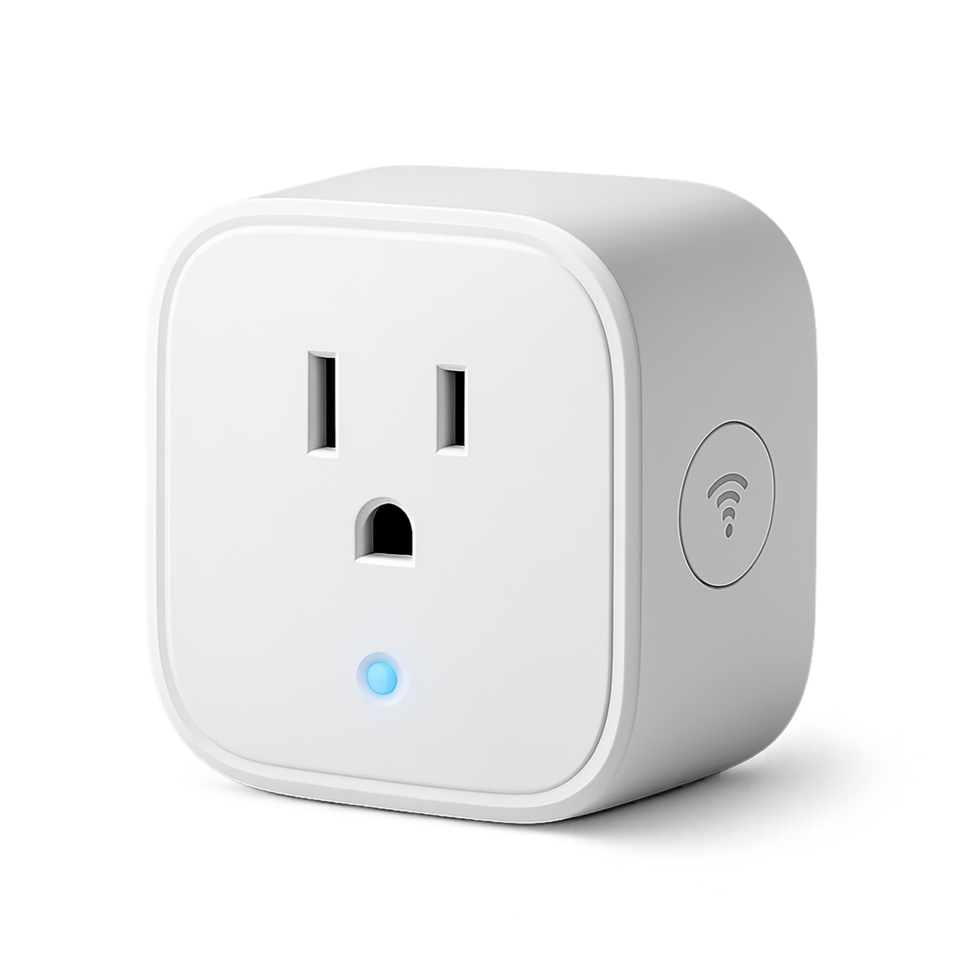
Why Bother Renaming Your Smart Plugs Anyway?
It might seem like a small task, but giving your smart plugs proper names is a total game-changer. Think of it like labeling the spice jars in your kitchen. Sure, you could open every single one to find the cinnamon, but isn’t it easier when it’s clearly marked?
“The future of the smart home isn’t just about connected devices; it’s about intuitively named, seamlessly integrated devices that feel like a natural extension of your home. A logical name is the bridge between complex technology and simple human interaction.” – Dr. Alistair Finch, IoT Analyst
Here’s why taking five minutes to rename your plugs is worth it:
- Voice Control That Actually Works: Voice assistants like Alexa, Google Assistant, and Siri are smart, but they aren’t mind readers. Saying “Turn on the living room floor lamp” is a world away from “Turn on Kasa Plug KP115_x4B.” A clear name means a clear command and an instant result.
- Effortless Organization: As you add more devices, your app can become a cluttered mess. Naming plugs by their location and function (e.g., “Bedroom Fan,” “Kitchen Coffee Maker”) lets you find and control exactly what you need in seconds.
- Simplified Routines and Automations: When you build automated routines, like a “Good Morning” scene that turns on your lamp and starts the coffee pot, you need to know which plug is which. Proper naming makes creating these powerful automations a breeze.
- Family-Friendly Use: You might remember that “Plug_04” is the TV, but will your partner, kids, or guests? Simple, descriptive names make the smart home accessible to everyone in the house.
How to Rename a Smart Plug in App: The Universal Steps
While the exact button placement can vary slightly between different brands and apps, the core process of how to rename a smart plug in an app is remarkably consistent. Almost every smart home app follows this same basic logic.
Here is a general, step-by-step guide that will work for most brands, including TP-Link Kasa, Wyze, Meross, and those using the popular Smart Life or Tuya platforms.
- Open the App: Launch the mobile application you used to set up your smart plug.
- Find Your Device: Navigate to your main device list. This is usually the home screen of the app.
- Select the Plug: Tap on the smart plug you wish to rename. This will typically take you to a control screen where you can turn it on or off and see its status.
- Access Device Settings: Look for a settings icon. This is almost always a gear icon (⚙️) or sometimes three dots (…) located in the top-right corner of the screen. Tap it.
- Locate the Name Field: Inside the settings menu, you should see the current name of the device at the very top. Often, there will be a pencil icon (✏️) or an arrow next to it. Tap on the name itself or the icon.
- Enter the New Name: A text field will appear. Delete the old, generic name and type in your new, descriptive name.
- Save Your Changes: Hit “Save,” “Confirm,” or a checkmark icon to finalize the new name. That’s it!
Your app will now show the new name, and if it’s linked to a voice assistant, the change should sync up almost immediately.
A Closer Look: Renaming in Popular Ecosystems
To make things even easier, here are the specific paths for some of the most popular smart home platforms.
For TP-Link Kasa App Users
The Kasa app is known for its user-friendly interface.
- Open the Kasa Smart app.
- From the Devices tab, tap the smart plug you want to edit.
- Tap the gear icon in the top-right corner.
- Tap on the Device Name field at the top of the Device Settings screen.
- Type your new name and tap Save.
For Smart Life or Tuya App Users
These are widely used generic apps that support thousands of different device brands.
- Open the Smart Life or Tuya Smart app.
- Tap on the smart plug from your device list.
- Tap the pencil icon in the top-right corner.
- Tap on the Name field (it’s usually the first option).
- Enter the new name and tap Save.
Within the Amazon Alexa App
Sometimes, you want to give a device a different name (a “nickname”) in Alexa than it has in its native app.
- Open the Amazon Alexa app.
- Tap on the Devices tab at the bottom.
- Tap on Plugs.
- Select the plug you want to rename.
- Tap the gear icon in the top-right corner.
- Tap Edit Name, enter the new name, and you’re done. The app saves automatically.
Beyond the Basics: Pro Naming Conventions for a Flawless Smart Home
Okay, you know how to do it. Now, let’s talk about the best way to do it. A little strategy here goes a long way.
- Be Specific and Descriptive: “Lamp” is good. “Living Room Reading Lamp” is great. “Office Desk Lamp” is better than “Office Lamp” if you have more than one. The more specific you are, the less chance your voice assistant will get confused.
- Use Location Prefixes: A simple trick is to start every name with the room it’s in. For example:
- Living Room TV
- Living Room Floor Lamp
- Bedroom Fan
- Bedroom Bedside Lamp
This groups them together alphabetically in your app list, making them super easy to find.
- Keep it Natural: Name devices how you would actually say them in conversation. You’re more likely to say “turn on the Christmas tree” than “turn on the holiday illumination device.” Use simple, natural language.
- Avoid Similar-Sounding Names: Naming one plug “Office Fan” and another “Office Stand” might be a recipe for confusion for your voice assistant. Try to make names phonetically distinct.
|
Our Picks for the Best Smart Plug in 2026
As an Amazon Associate, we earn from qualifying purchases.
|
||
| Num | Product | Action |
|---|---|---|
| 1 | Kasa Smart Plug Mini 15A, Apple HomeKit Supported, Smart Outlet Works with Siri, Alexa & Google Home, UL Certified, App Control, Scheduling, Timer, 2.4G WiFi Only, 4 Count (Pack of 1) (EP25P4), White |

|
| 2 | Amazon Basics Smart Plug, Works with Alexa Only, 2.4 GHz Wi-Fi, No Hub Required, 4-Pack, White |
|
| 3 | Govee Smart Plug, WiFi Plugs Work with Alexa & Google Assistant, Smart Outlet with Timer & Group Controller, WiFi Outlet for Home, No Hub Required, ETL & FCC Certified, 2.4G WiFi Only, 2 Pack |
|
| 4 | Amazon Basics Smart Plug, Works with Alexa Only, 2.4 GHz Wi-Fi, No Hub Required, 2 Pack, White |
|
| 5 | Kasa Smart Plug HS103P2, Smart Home Wi-Fi Outlet Works with Alexa, Echo, Google Home & IFTTT, No Hub Required, Remote Control,15 Amp,UL Certified, (Pack of 2) White |
|
| 6 | Govee Smart Plug, WiFi Plugs Work with Alexa & Google Assistant, Smart Outlet with Timer & Group Controller, WiFi Outlet for Home, No Hub Required, ETL & FCC Certified, 2.4G WiFi Only, 4 Pack |
|
| 7 | Kasa Smart Plug Mini 15A, Smart Home Wi-Fi Outlet Works with Alexa, Google Home & IFTTT, No Hub Required, UL Certified, 2.4G WiFi Only, 4-Pack(EP10P4) , White |
|
| 8 | Kasa Smart Plug HS103P4, Smart Home Wi-Fi Outlet Works with Alexa, Echo, Google Home & IFTTT, No Hub Required, Remote Control, 15 Amp, UL Certified, 4-Pack, White |
|
| 9 | TP-Link Tapo Matter Supported Smart Plug Mini, Compact Design, 15A/1800W Max, Super Easy Setup, Works with Apple Home, Alexa & Google Home, UL Certified, 2.4G Wi-Fi Only, White, Tapo P125M(3-Pack) |
|
| 10 | Kasa Smart Plug Ultra Mini 15A, Smart Home Wi-Fi Outlet Works with Alexa, Google Home & IFTTT, No Hub Required, UL Certified, 2.4G WiFi Only, 2 Count (Pack of 1)(EP10P2) , White |
|
What if Renaming My Smart Plug Doesn’t Work?
Hit a snag? It’s rare, but it happens. If your new name isn’t saving or your voice assistant isn’t recognizing the change, here are a few quick troubleshooting steps to try.
- Force Close and Re-Open the App: The oldest trick in the IT book, and it often works.
- Check Your Wi-Fi Connection: A weak or unstable connection can sometimes prevent changes from being saved to the cloud.
- Re-sync Your Voice Assistant: In the Alexa or Google Home app, try the command “Discover devices.” This forces the assistant to scan your network again and pick up on any name changes.
- Clear the App’s Cache: In your phone’s settings (under Apps), find the smart plug’s app and clear its cache. This can resolve strange glitches without deleting any of your important data.
Frequently Asked Questions (FAQ)
Q1: Can I rename my smart plug more than once?
Absolutely! You can change the name of your smart plug as many times as you like. This is useful if you move the plug to a different location or connect a new appliance to it.
Q2: Will renaming my smart plug in its own app (like Kasa) also change it in Alexa or Google Home?
Usually, yes. When you first link the services, the name is imported. After a name change, a re-sync (by saying “Alexa, discover devices”) will typically update the name in your voice assistant’s app as well. If it doesn’t, you can always rename it manually within the Alexa or Google Home app itself.
Q3: What’s the best name to give a smart plug?
The best name is one that is descriptive of the device it controls and the room it is in. For example, “Kitchen Counter Lights” or “Master Bedroom Humidifier” are excellent names because they are clear, specific, and easy to say.
Q4: Do I have to reset my smart plug to rename it?
No, not at all. Renaming is a simple software change done through the app and does not require a factory reset. All your other settings, schedules, and connections will remain untouched.
Q5: My voice assistant isn’t recognizing the new name. What should I do?
First, give it a minute or two to sync. Then, try asking your assistant to “discover devices.” If that fails, open your voice assistant’s app (Alexa or Google Home), go to the device list, and confirm that the new name is showing there. If not, you can edit it manually in that app.
Your Smart Home, Your Rules
Mastering how to rename a smart plug in an app is your gateway to a more organized, efficient, and enjoyable smart home experience. It’s a small change that delivers a huge impact, eliminating confusion and making voice commands second nature. So go ahead, open up your app, and banish “Smart Plug 3” from your life forever. Give your devices the clear, sensible names they deserve and take the next step toward building the smart home of your dreams.